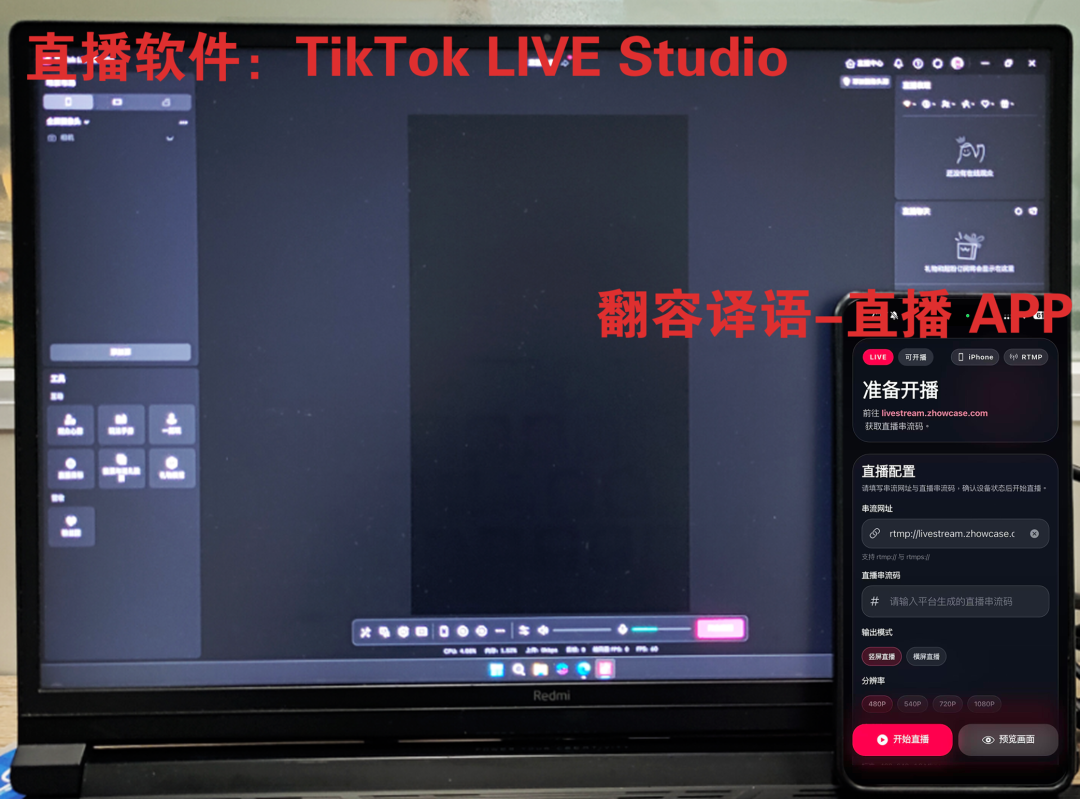
I. Equipment Preparation Before starting, we recommend preparing the following: • A phone with the Zhowcase-estreaming App installed • A computer • Livestreaming software on the computer (using TikTok LIVE Studio as an example) • A stable network environment (please prepare your own proxy network tools when using overseas platforms)

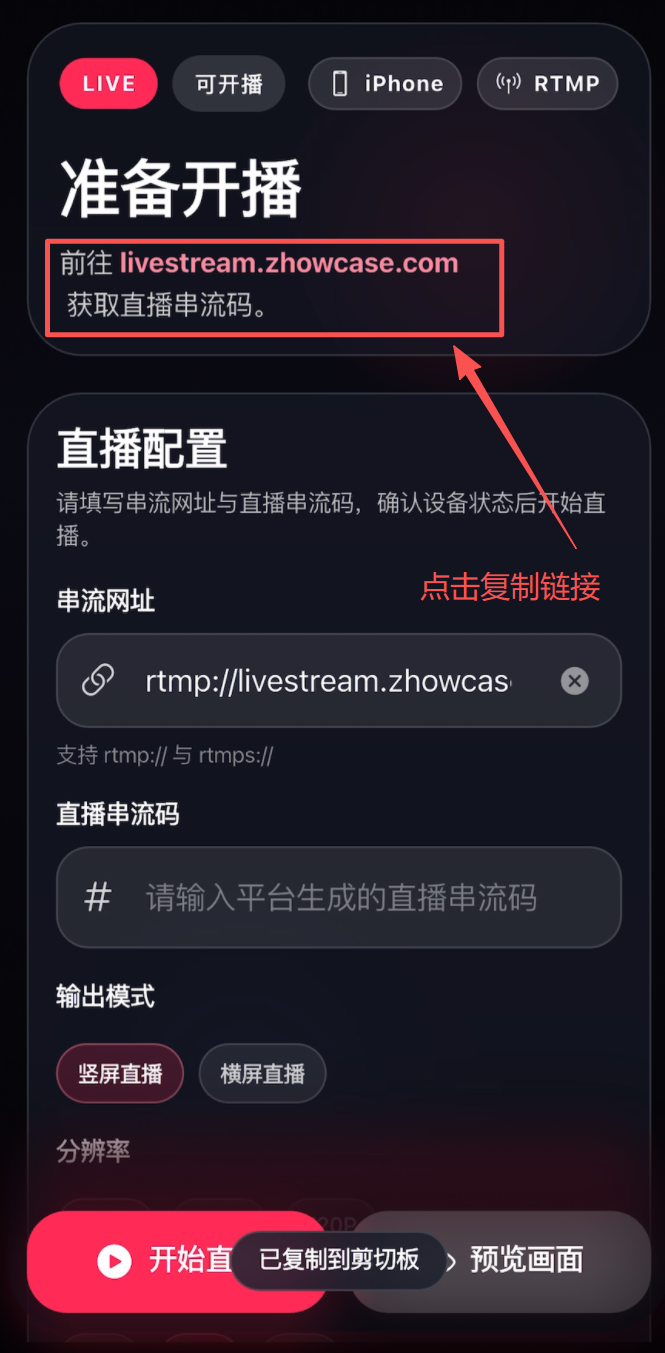
Once preparations are complete, you can proceed to the formal broadcasting process. II. Install the Zhowcase-estreaming App and Obtain the Livestream Stream Key First, download and install the Zhowcase-estreaming App on your phone. After installation, open the App and enter the home screen.

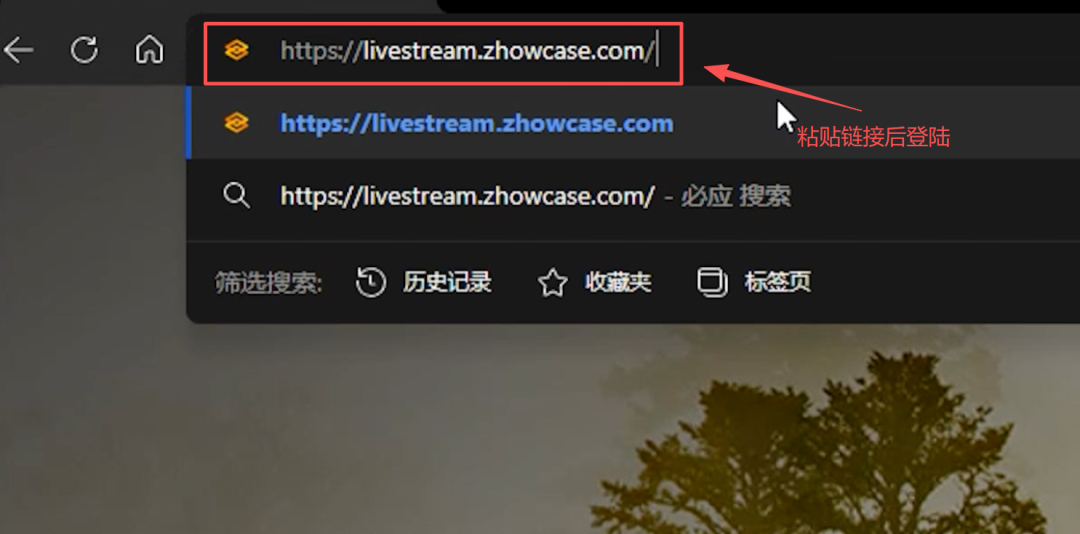
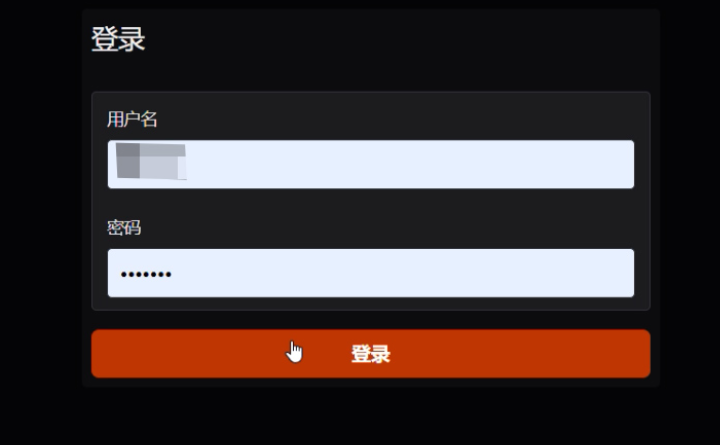
After opening the App, follow the on-screen prompts to copy the corresponding link and open it in your computer browser. Once on the web page, complete the login.


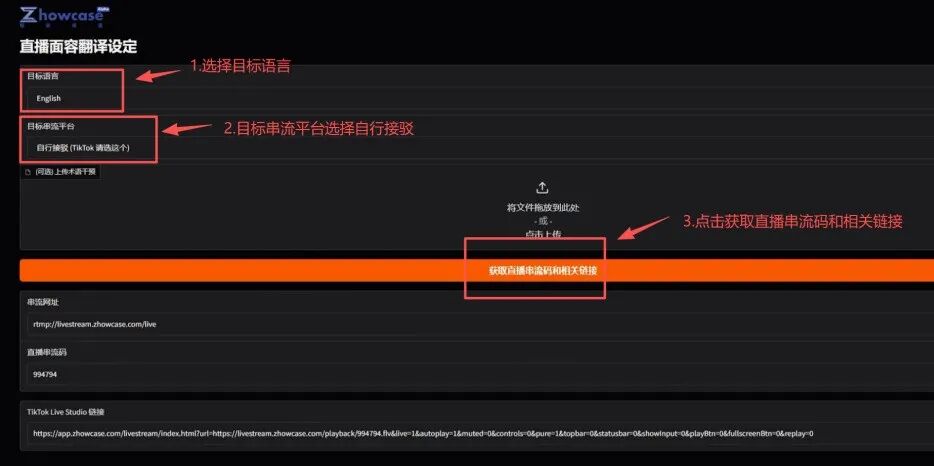
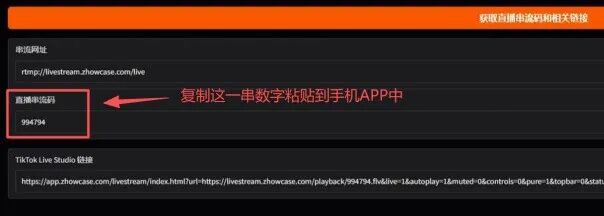
After successful login: 1. First select the target language. 2. Select “Self-Connection” for the target platform. 3. After making your selections, click “Get Your Livestream Software Stream Key.” The web page will generate the stream key needed for this broadcast.

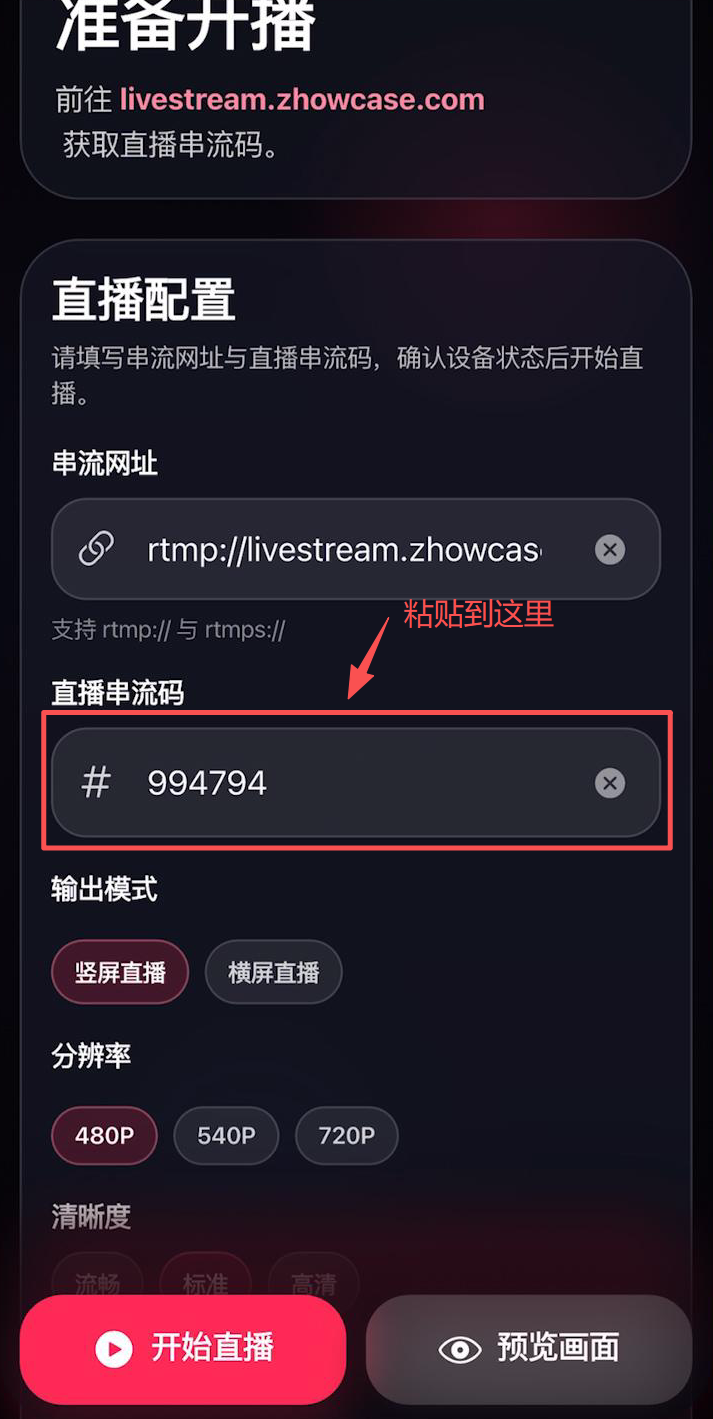
4. Copy this set of livestream stream keys, then return to the mobile App and fill them into the designated fields.


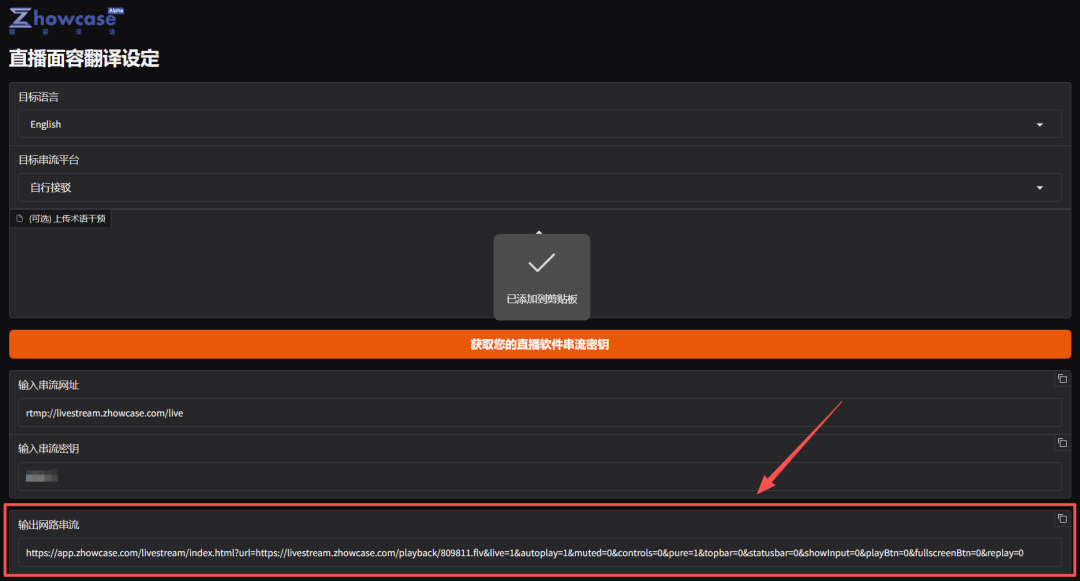
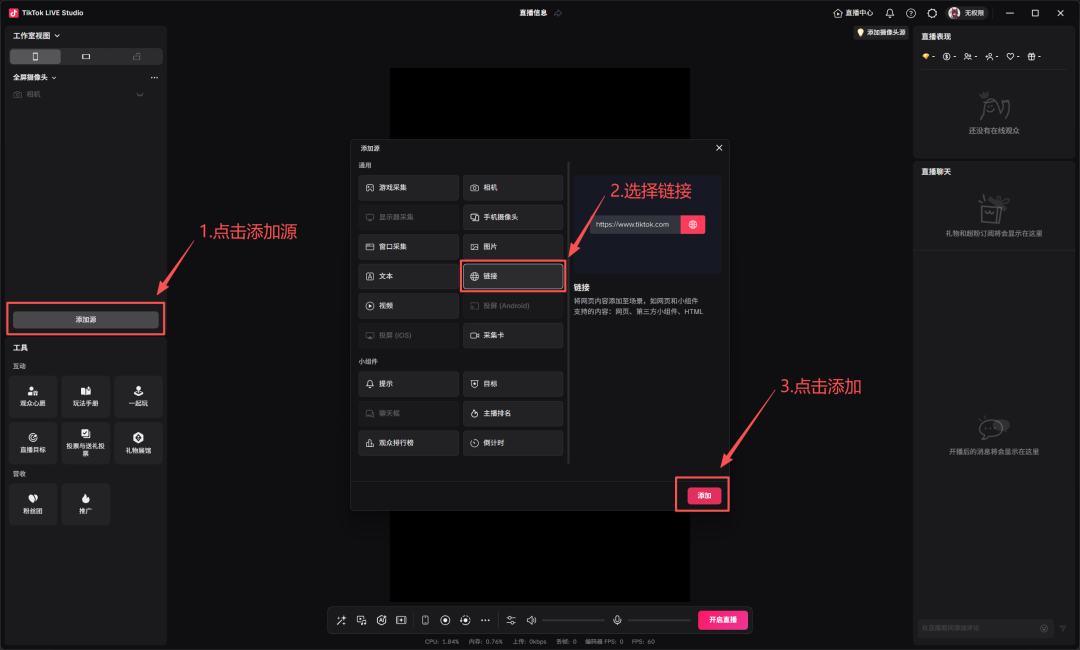
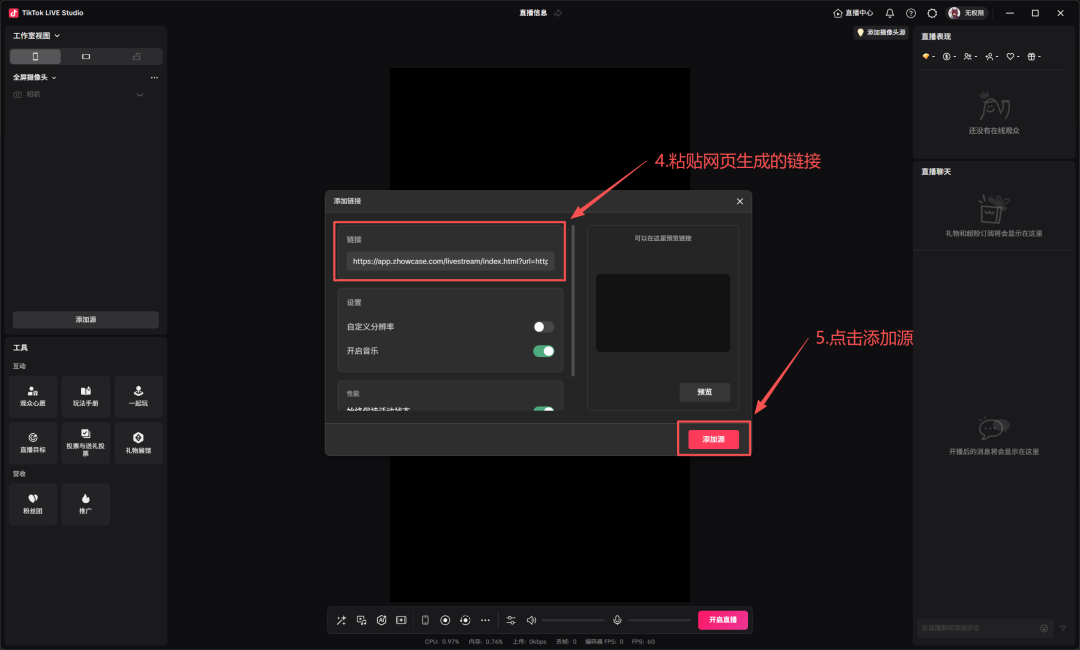
The purpose of this step is to complete the stream push configuration binding between the web page and the App, preparing for the formal broadcast to follow. III. Connect to Livestream Software, Using TikTok Live Studio as an Example After completing login and stream push configuration, the web page will generate the corresponding stream push link.

Next, open the livestream software on your computer, such as TikTok LIVE Studio, and add this stream push link.


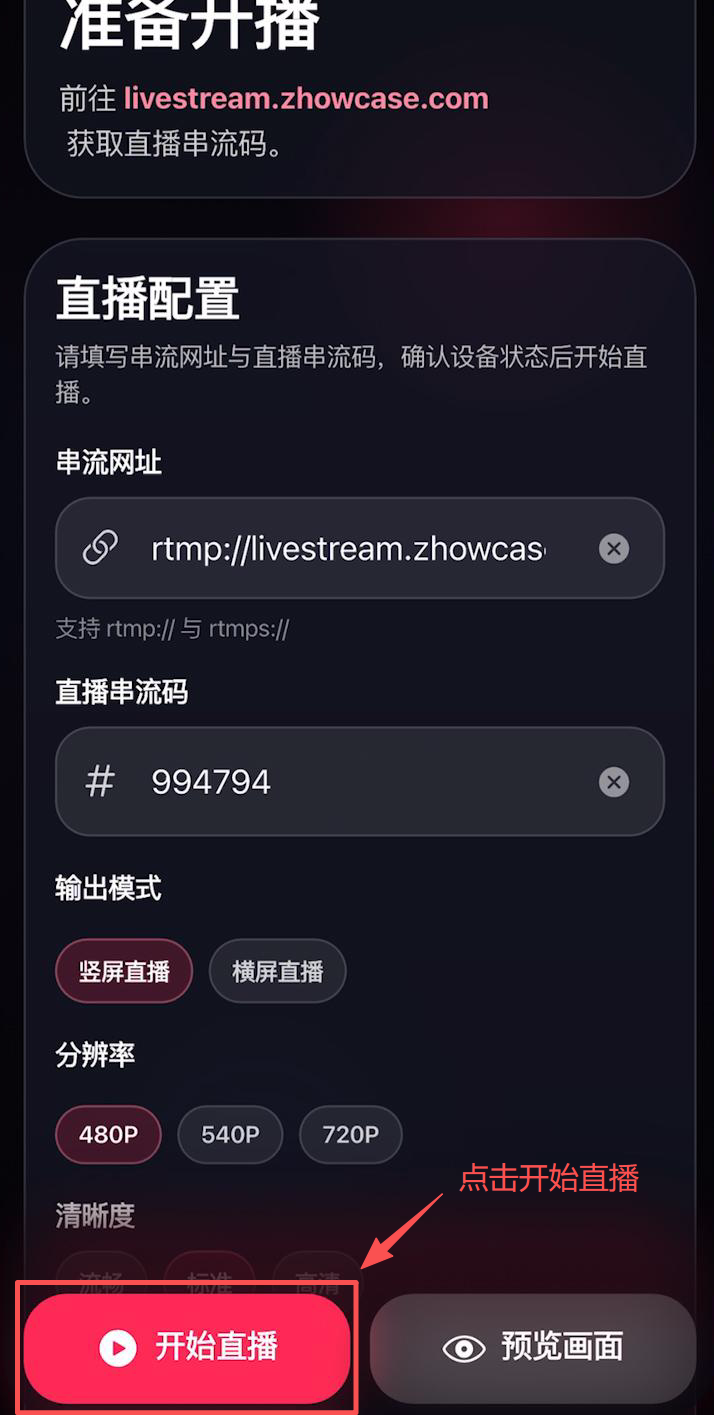
After successful addition, the livestream software will be able to receive the video feed from Zhowcase Live, preparing the signal for the formal broadcast. Once the stream key has been filled in and the stream push link has been successfully connected to the livestream software, click “Start Livestream” on the phone. You can also click “Preview” to check the camera feed.

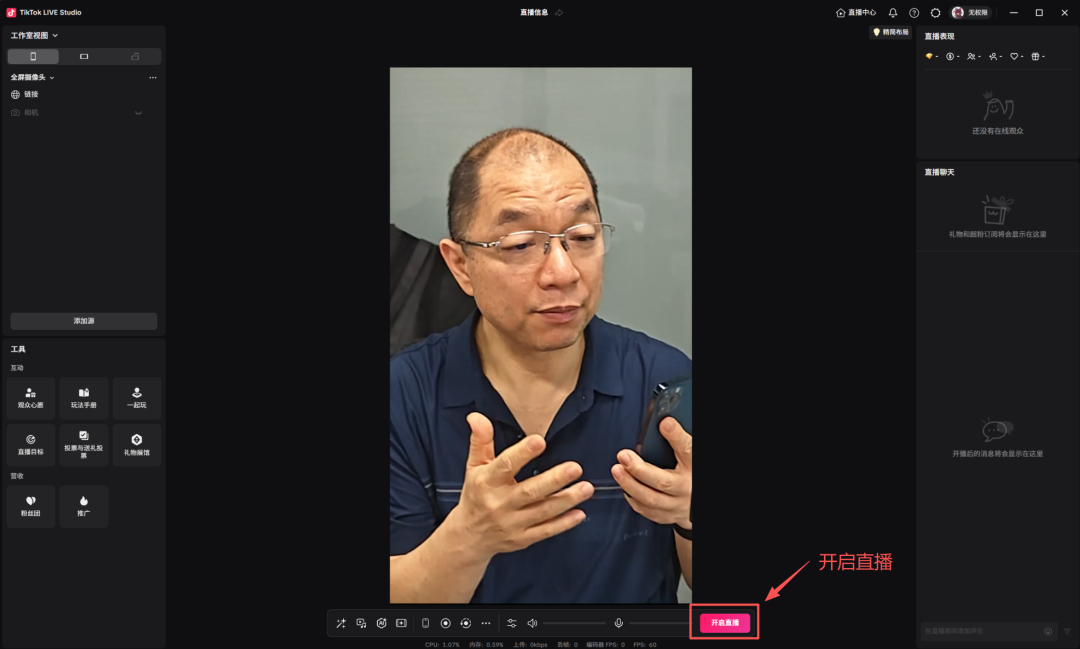
After a few seconds of delay, the phone livestream feed will appear inside TikTok LIVE Studio.

At this point, click the “Start Livestream” button inside TikTok LIVE Studio, and you’re broadcasting! IV. Livestream Notes

If you are using a laptop, due to TikTok Live Studio limitations, you must note the following: 1. You must plug in wired earphones (any wired earphones will do). 2. The laptop + TikTok Live Studio + earphone volume must not be muted. Otherwise, during the livestream, there will be no sound.